Days and the zoom ruler
Today and the calendar are one screen. Slide the ruler to see a few days, the week, the month or the year.
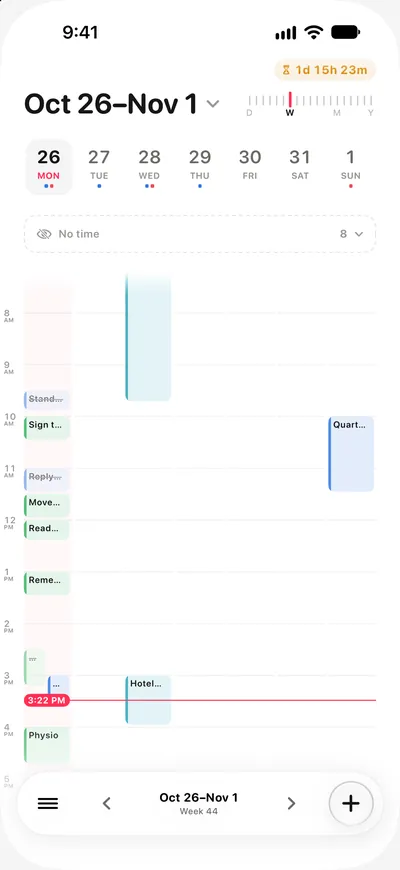
In ThisDay 3.0 your day and your calendar are one screen, called Days. A ruler at the top decides how much of time you see at once.
Zooming out and back in
Slide the ruler at the top of Days outwards to see two to six days, the week, the month and then the whole year. Tap any day, at any zoom, to come back into it.
The ruler lands on the stop where you let go. Every stop shows the same items; only how much of time you see changes.
Moving between days
- Use the arrows on the Day Bar, or swipe across the date, to go a day forward or back.
- Pull down at the top of the screen to search, which also jumps to any screen.
What the day shows
One day is one timeline, in the order the day happens. Items with a time sit at their time; items without one sit together. Events from your other calendars and lists from Apple Reminders appear in the same place when you connect them. See Calendars and Apple Reminders.
The week starts when you say
Settings chooses whether a week starts on Saturday, Sunday or Monday, and every week view and the month follow it.
On iPad, Mac and iPhone Duo
With more room, the sidebar stays open beside Days. On the Mac, Command [ and Command ] move between days and Command T comes back to today. See ThisDay for Mac and iPhone Duo.